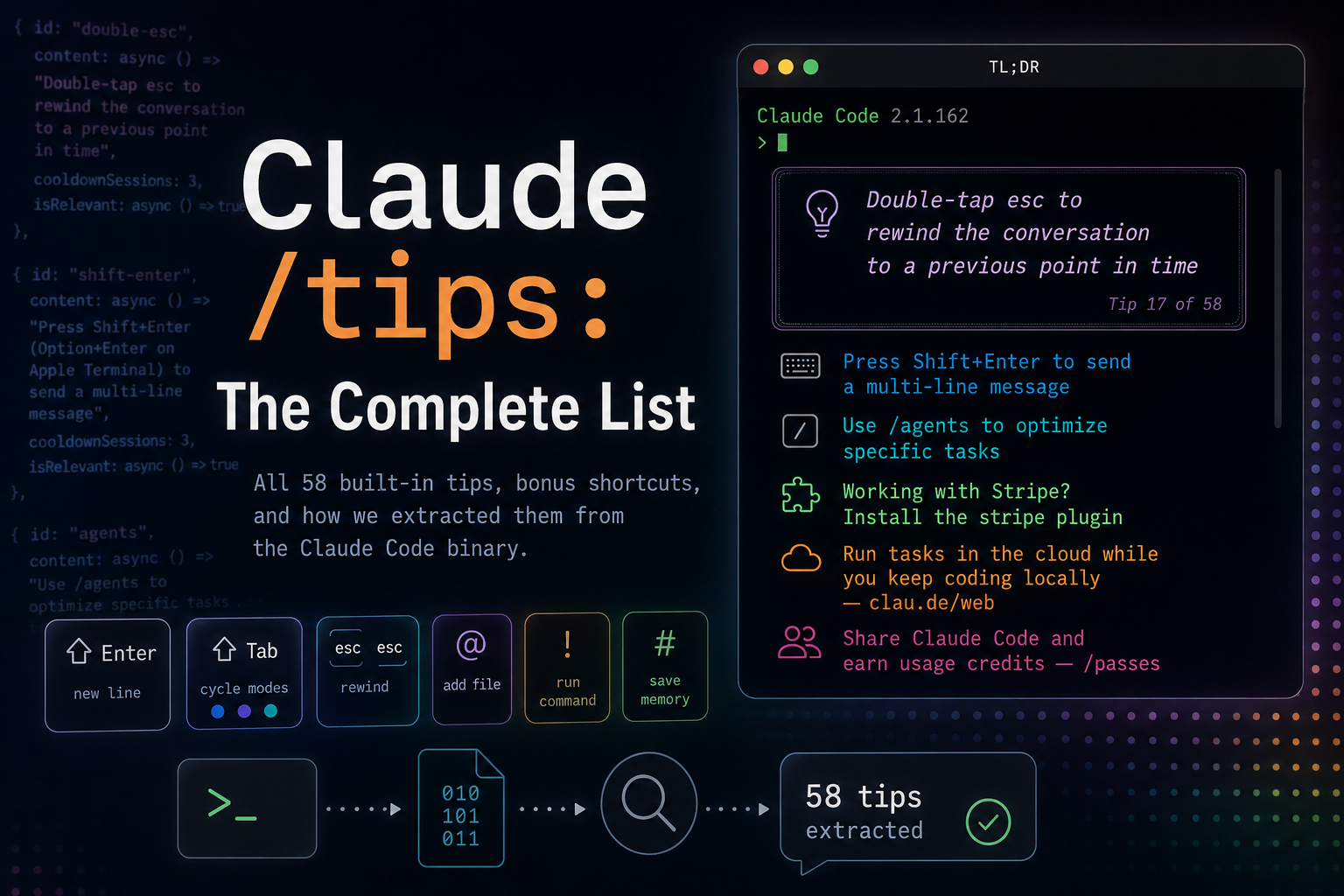
TL;DR
You know those little italic tips that flicker at the bottom of Claude Code while it thinks — "Double-tap esc to rewind," "Hit Shift+Tab to cycle modes"? There's no docs page that lists them, because they're compiled into the Claude Code binary itself. So I pointed Claude at its own executable and had it read them out.
The result: all 58 tips that Claude Code 2.1.162 ships with, below. You'll never see them all in normal use — each one is gated to a relevant context and put on cooldown after it shows, so the rotation is different for every project and every user. The complete list is right here, followed by a bonus round of keyboard shortcuts that aren't in the rotation, and — if you're curious — the story of how I extracted them at the end.
The Complete List
Every tip Claude Code 2.1.162 can show you, grouped by theme. (Two are fully dynamic — a server-supplied "feature of the week" and a team-artifacts summary — so they have no fixed text and are omitted.)
Keyboard & input
- Press Shift+Enter (Option+Enter on Apple Terminal) to send a multi-line message
- Hit Shift+Tab to cycle between default mode, auto-accept edit mode, and plan mode
- Double-tap esc to rewind the conversation to a previous point in time
- Double-tap esc to rewind the code and/or conversation to a previous point in time
- Hit Enter to queue additional messages while Claude is working
- Send messages to Claude while it works to steer it in real-time
- Did you know you can drag and drop image files into your terminal?
- Paste images into Claude Code using Ctrl+V (not Cmd+V!)
Slash commands & config
- Use /memory to view and manage Claude memory
- Use /theme to change the color theme
- Use /statusline to set up a custom status line beneath the input box
- Use /permissions to pre-approve and pre-deny bash, edit, and MCP tools
- Use /voice to enable push-to-talk dictation
- Use /feedback to help improve Claude Code
- Name your conversations with /rename to find them easily in /resume later
- Running multiple sessions? Use /color and /rename to tell them apart at a glance
- Try smoother rendering, lower memory, mouse support, and better copy formatting — /tui fullscreen
- New to Claude Code? Run /powerup for a quick interactive tutorial
- Run /terminal-setup to enable Shift+Enter (or Option+Enter) for new lines and more
Agents, skills & workflows
- Create skills by adding
.mdfiles to.claude/skills/in your project, or~/.claude/skills/for skills that work everywhere - Use /agents to optimize specific tasks — e.g. Software Architect, Code Writer, Code Reviewer
- Use
--agent <agent_name>to start a conversation directly with a subagent - Say "fan out subagents" and Claude sends a team — each one digs deep so nothing gets missed
- /loop runs any prompt on a recurring schedule — great for monitoring deploys, babysitting PRs, or polling status
- Set an objective with /goal — Claude keeps working until it's met
- Use Plan Mode to prepare for a complex request before making changes — Shift+Tab twice to enable
- Ask Claude to create a todo list when working on complex tasks to track progress and stay on track
- Use git worktrees to run multiple Claude sessions in parallel
- /ultrareview runs a deep, multi-agent review of your changes
- Start with small features or bug fixes, tell Claude to propose a plan, and verify its suggested edits
IDE & app integrations
- Connect Claude to your IDE — /ide
- In VS Code, open the Command Palette (Cmd+Shift+P) and run "Shell Command: Install 'code' command in PATH" to enable IDE integration
- Run /install-github-app to tag @claude right from your GitHub issues and PRs
- Run /install-slack-app to use Claude in Slack
- Run Claude Code locally or remotely using the Claude desktop app — clau.de/desktop
- Run tasks in the cloud while you keep coding locally — clau.de/web
- Continue your session in Claude Code Desktop with /desktop
- Working on UI? Claude Code Desktop has live preview and inline images — clau.de/desktop
- Control this session remotely — run /remote-control
- Get pinged on your phone when long tasks finish — enable push notifications in /config
- Build your AI product with Claude API — run /claude-api to get started
Environment & plugin nudges
- Working with HTML/CSS? Install the frontend-design plugin
- Working with Vercel? Install the vercel plugin
- Working with Stripe? Install the stripe plugin
- Run
claude --continueorclaude --resumeto resume a conversation - Try setting
COLORTERM=truecolorfor richer colors - Set
CLAUDE_CODE_USE_POWERSHELL_TOOL=1to enable the PowerShell tool (preview) - Your default model is Opus Plan Mode — press Shift+Tab twice to plan with Claude Opus
Sharing & growth
- Share Claude Code and earn usage credits — /passes
- Run /team-onboarding to turn your Claude usage into a shareable onboarding guide
Bonus: shortcuts that aren't in the rotation
Honestly, these are more valuable day-to-day than half the tips above — the keyboard shortcuts and input sigils pulled from the same binary's keybinding map. They mostly don't surface as tips, but they're the difference between poking at Claude and actually driving it.
The three input sigils — type these as the first character of your message:
!runs the rest of the line as a shell command in your session, dropping the output right into the conversation. Perfect for an interactive login or a quickgit statuswithout leaving the chat.@mentions a file or directory — Claude pulls it into context. Start typing a path and it autocompletes.#saves what follows as a memory, so Claude remembers it in future sessions.
Keyboard shortcuts (defaults — all rebindable in ~/.claude/keybindings.json):
- Shift+Tab — cycle through default / auto-accept-edits / plan mode
- Esc — interrupt Claude mid-task
- Esc Esc (double-tap) — rewind the conversation (and optionally code) to an earlier point
- Ctrl+G — pop your draft open in your
$EDITORfor long or multi-line prompts - Ctrl+L — clear the screen
- Ctrl+V — paste an image from your clipboard (note: not Cmd+V on Mac)
- Ctrl+S — stash your current input
- Alt+P — open the model picker
- Alt+T — toggle extended thinking
- Alt+O — toggle fast mode
- Alt+W — toggle workflow-keyword detection
- Ctrl+B — background a running tool call so you can keep working
- Ctrl+X Ctrl+K — kill running agents
Slash commands worth knowing beyond the ones the tips mention: /resume and /clear to manage history, /compact to summarize and free up context, /export to save a transcript, /cost for session spend, /model to switch models, /vim for modal editing, and /init to generate a CLAUDE.md for a fresh project.
How I got this list: Claude reading itself
Here's the fun part. There's no documentation page for the tips, they aren't in a config file you can cat, and they aren't fetched from a server. They're baked into the Claude Code executable — a single 233 MB binary sitting at ~/.local/share/claude/versions/2.1.162 on my machine.
But even compiled binaries are full of readable strings — the literal text of every message a program can print is sitting right there in the file. So the investigation was just a matter of knowing where to look.
First, find where the tips live. Tips fire an analytics event when shown, so I grepped the binary's strings for anything tip-shaped:
strings -n 6 claude-binary | grep -oiE "tengu_[a-z_]*tip[a-z_]*"
# tengu_tip_shown
# tipId
# tipsHistory
That tengu_tip_shown event, with its tipId field, was the thread to pull. Each tip turned out to be a JavaScript object baked into the bundle, shaped like this:
{
  id: "double-esc",
  content: async () => "Double-tap esc to rewind the conversation to a previous point in time",
  cooldownSessions: 3,
  isRelevant: async () => true
}
Find one, find the array. A grep for the content:async signature surfaced all of them, and a small Python parser walked each object to recover its text — including the ones whose content is built dynamically from keybinding helpers and the current terminal type.
The whole thing took about four tool calls. No decompiler, no reverse-engineering, no guessing — just Claude reading the strings table of the program it is. There's something pleasingly recursive about asking an AI assistant to introspect its own source and report back what advice it's been quietly trying to give you.
Why you never see them all
Those two fields on each tip object — isRelevant() and cooldownSessions — explain the whole experience.
isRelevant()is a context check. The IDE-integration tip only fires when you're in an external terminal. The Stripe-plugin nudge only appears when your project actually depends on Stripe. The "Opus Plan Mode" reminder only shows if that's your configured default. Most tips are gated to a situation where they'd genuinely help.cooldownSessionsis a repeat suppressor, typically3. Once you've seen a tip, it won't come back for at least that many sessions.
So the tip at the bottom of your screen is the result of: of all the tips whose context currently applies, which ones aren't on cooldown — pick one. That's why a fresh project surfaces different advice than a long-running one, and why power users and first-timers see different rotations.
The advice was never hidden, just compiled. If you want to re-extract these after your next update, the recipe is simple: strings the binary at ~/.local/share/claude/versions/<version> and grep for content:async near cooldownSessions. The tips evolve with each release — but now you know where they live.