Disclaimer: never do this. It's too dangerous, and I accept no responsibility for explaining how this works here 😉 — but for real, don't do this. This article is purely for academic interest.
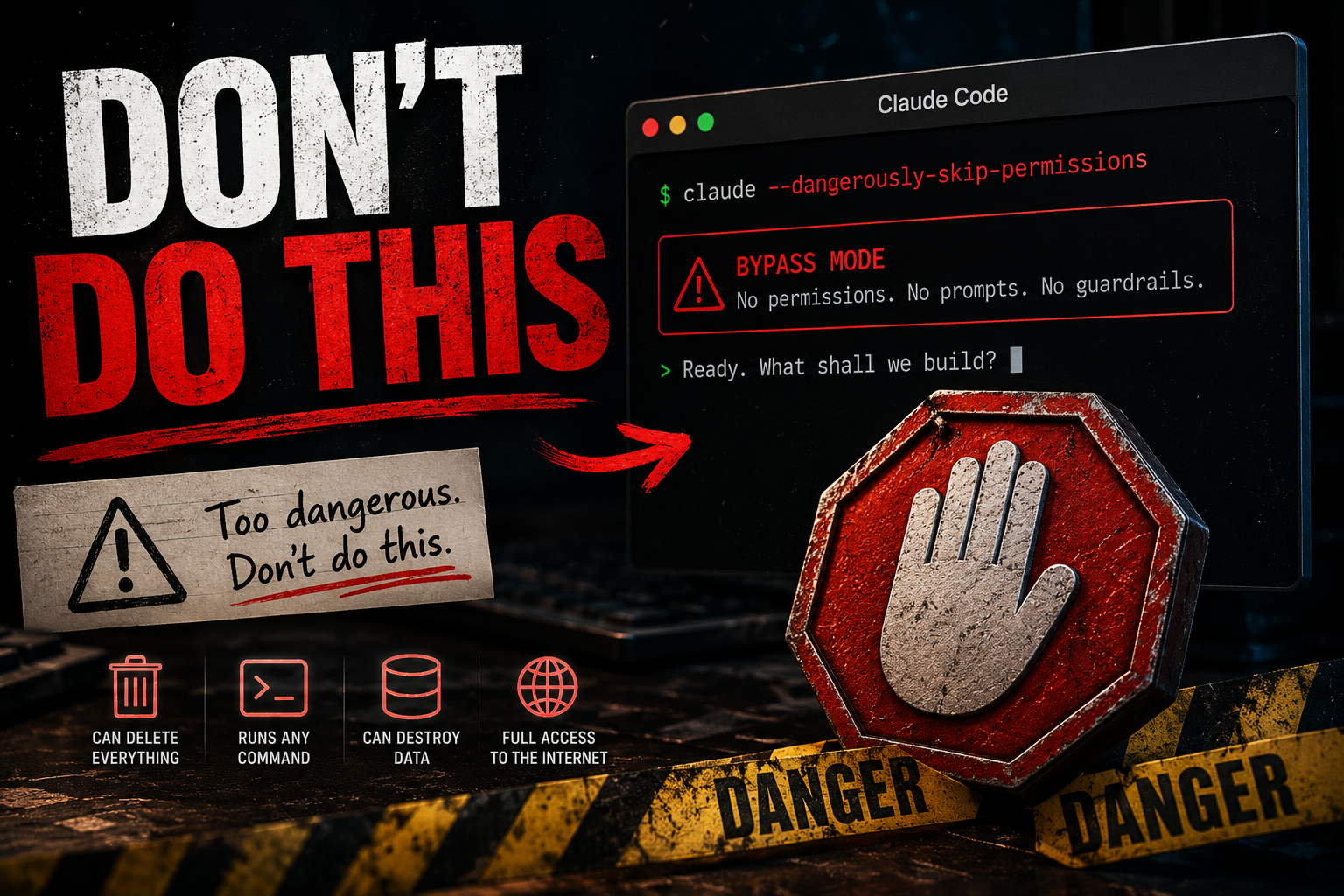
If you run Claude Code with --dangerously-skip-permissions every single launch, and you've noticed that resumed sessions are the worst offenders for nagging you to approve things — this one's for you. The behavior isn't a bug. It's a consequence of how permission mode works, and once you understand it the fix is one line of config.
The core idea: mode is set at startup, not per-turn
Claude Code has a few permission modes. The strongest is bypassPermissions — the true "no guardrails, never ask" mode. The critical thing to understand:
A session's permission mode is locked in when the session starts. It is runtime state, not a setting that gets re-read on every action.
There are exactly two ways a session enters bypassPermissions:
- You launch with the
--dangerously-skip-permissionsflag, or - You set
permissions.defaultModetobypassPermissionsin your settings, which is read at startup.
That word startup is the whole story.
Why resumed sessions are the worst
Here's the pattern that drives people up the wall:
- Fresh session with the flag → bypass mode → blissful silence.
- Leave it open for hours → it asks less and less, because every "yes, and don't ask again" you click gets appended to your allow-list. The session is learning.
- Exit, then
claude --resumeorclaude -c→ the mode resets todefault, and unless you re-type the flag, you're back to approving everything from scratch.
So the sessions that feel the most annoying — the ones you're returning to from yesterday — are exactly the ones where the flag from the original launch no longer applies. You didn't do anything wrong. The flag just never persisted.
The fix: make bypass your default
Add this to ~/.claude/settings.json:
{
  "permissions": {
    "defaultMode": "bypassPermissions"
  }
}
Now every session — fresh, resumed, or background — starts in bypass mode with no flag required. You can stop typing --dangerously-skip-permissions entirely.
One related setting worth knowing: skipDangerousModePermissionPrompt: true only suppresses the scary red "are you sure you want bypass mode?" warning dialog. It does not put you in bypass mode. People conflate the two and wonder why they're still being asked. Different knob.
The Shift+Tab trap
Here's where a lot of people (myself included) waste five minutes: Shift+Tab does not cycle to bypass.
Tap Shift+Tab at the prompt and you'll cycle through:
- normal — prompts on everything
- accept edits on — auto-approves file edits, still prompts on shell commands
- plan mode on — read-only, proposes a plan first
- auto mode on — a smart classifier that auto-approves anything it judges safe and only stops for genuinely destructive or irreversible actions
Notice what's missing: bypassPermissions. It is deliberately excluded from the interactive cycle. It's the one mode with zero guardrails, so the designers made it reachable only via the launch flag or the startup setting — never a keystroke. If you're hammering Shift+Tab in a running session waiting for "bypass permissions" to show up, it never will. That's the safety boundary working as intended, not a broken session.
What to do with sessions that are already running
Because mode is fixed at startup, editing your settings does not retroactively flip a session that's already live. For those:
- Want the most relief without restarting? Shift+Tab until it reads auto mode on. It kills the vast majority of prompts — auto-approving routine work and only pausing on the genuinely dangerous stuff (drops, wipes,
rm -rf). For most workflows you won't feel the difference from bypass. - Want true zero-prompt bypass? Exit and bring the session back with
claude -corclaude --resume. On relaunch it reads your newdefaultModeand comes back in real bypass mode, with your full context intact.
One honest caveat
bypassPermissions means zero prompts, including for genuinely destructive actions. If your day involves sudo, disk partitioning, or live database work, a fat-fingered command goes through with no "are you sure?" If you want a safer middle ground, set defaultMode to acceptEdits (auto-approves edits, still pauses on shell commands) or lean on auto mode, which is smart enough to auto-approve the safe 95% and stop on the scary 5%.
Seriously, though: do it in a sandbox
The permission prompt is a safety net, and turning it off entirely means you've removed the one thing standing between an agent and your real filesystem, your real credentials, your real production database. So if you're going to run with no guardrails, put a different set of guardrails around the whole thing: run it in a sandbox.
That can mean a few things, in rough order of effort:
- Claude Code's own sandbox. There's a
sandboxblock in settings that confines tool execution — filesystem write-jails, network allow/deny lists, the works. Bypassing prompts while still sandboxing execution is a genuinely reasonable combo: no nagging, but a fat-fingeredrm -rf /can't escape the box. - A container or VM. Run the whole session inside Docker, a throwaway VM, or a dev container with only the project mounted and nothing sensitive in reach. If it all goes sideways, you
docker rmthe blast radius. - A scratch user / scratch machine. No prod creds in the environment, no SSH keys to your real infrastructure, nothing in
~you'd cry over.
The principle: never combine "no prompts" with "full access to things you care about." Remove one or the other. Bypass mode is a lot less scary when the worst it can reach is a disposable container.
But if you've already been launching with --dangerously-skip-permissions every time, setting defaultMode: bypassPermissions isn't new risk. It just makes your existing habit the default — and finally fixes the resumed-session nagging for good.