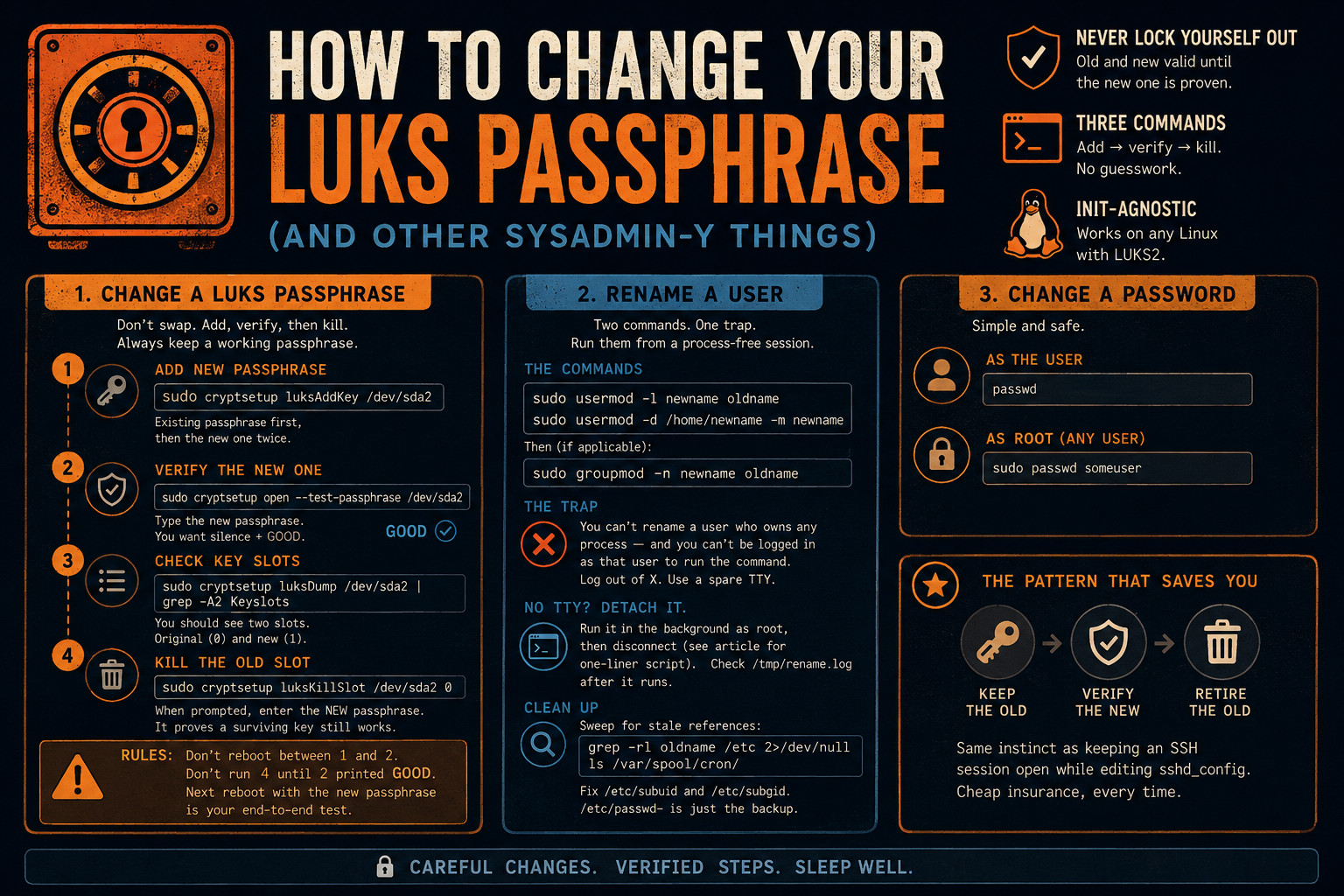
Every encrypted Linux install eventually needs its passphrase changed. Maybe the machine changed hands, maybe the passphrase has been hunter2 since the day you imaged it. The change itself is three commands — but it's a change where a wrong move locks you out of your own disk, so the procedure below is built around never having a moment without a known-good passphrase.
I hit this on an Aegix box this week, along with two smaller identity chores — renaming a user and changing a password — that have their own sharp edges, so those are covered after the main event. Aegix is Artix-based and runs runit, but everything here is init-agnostic: it works the same on any Linux with shadow utils and LUKS2.
Changing a LUKS passphrase
Don't use luksChangeKey — it's an in-place swap with no checkpoint. Use add, verify, then kill: the old passphrase and the new one are both valid through the middle of the procedure, and the old one only dies after the new one has proven itself.
First find your LUKS device:
lsblk -f | grep -i crypto
On a stock Aegix install that's the partition under your aegixluks mapper — call it /dev/sda2 here.
Step 1 — add the new passphrase to a free keyslot. It asks for an existing passphrase first, then the new one twice:
sudo cryptsetup luksAddKey /dev/sda2
Step 2 — prove the new passphrase actually unlocks the disk. Type the new one:
sudo cryptsetup open --test-passphrase /dev/sda2 && echo GOOD
Silence plus GOOD is what you want. If this fails, stop — you still have the old passphrase, nothing is lost, try the add again.
Step 3 — see which keyslots are occupied:
sudo cryptsetup luksDump /dev/sda2 | grep -A2 Keyslots
You should see two slots now — the original (usually 0) and your new one (usually 1).
Step 4 — kill the old slot. When it prompts, give it the new passphrase; it's asking you to prove a surviving key still works, not to identify the victim:
sudo cryptsetup luksKillSlot /dev/sda2 0
Two rules make this bulletproof: never reboot between steps 1 and 2, and never run step 4 until step 2 has printed GOOD. The next reboot — unlocking with the new passphrase at the initramfs prompt — is your end-to-end confirmation.
Renaming a user
The commands themselves are two lines:
sudo usermod -l newname oldname            # rename the account
sudo usermod -d /home/newname -m newname   # rename and move the home dir
If the user has a personal primary group (most setups), rename that too:
sudo groupmod -n newname oldname
The sharp edge: usermod -l refuses to run while the target user owns any process — and on a desktop, your X session is a wall of those processes. Worse, you can't be logged in as the user to type the command, because the login itself is a blocking process. The error looks like:
usermod: user oldname is currently used by process 1234
The clean fix: log all the way out of X, switch to a spare TTY (Ctrl+Alt+F2), log in as root (or another wheel user), and run the commands from there. No processes, no complaints.
If the machine is headless or you only have SSH — where your own session is the blocker — detach the rename from your login entirely. Launch it as a root-owned background script, then disconnect before it fires:
sudo sh -c 'setsid sh -c "
  sleep 20
  pkill -9 -u oldname
  sleep 3
  usermod -l newname oldname
  usermod -d /home/newname -m newname
" > /tmp/rename.log 2>&1 < /dev/null &'
exit
By the time the sleep runs out, your SSH session is gone, the pkill sweeps any stragglers, and usermod runs against a process-free user. Reconnect as the new name (your ~/.ssh/authorized_keys moved with the home directory) and check /tmp/rename.log.
Afterward, sweep for stale references. The rename updates /etc/passwd and friends, but not everything:
grep -rl oldname /etc 2>/dev/null
ls /var/spool/cron/
In practice the usual stragglers are /etc/subuid and /etc/subgid (container UID maps) — a one-line sed fixes both. /etc/passwd- will also match; that's just the automatic backup file, leave it. Sudo access survives untouched if it's granted through the wheel group rather than a per-user rule, which is one more reason to do it that way.
Changing a password
The easy one, included for completeness. As the user:
passwd
Or as root, for any account:
sudo passwd someuser
That's it — no process drama, no keyslots.
The shape of all three
The pattern worth keeping is in the LUKS sequence: when a change can lock you out, structure it so the old credential and the new one are both valid in the middle, verify the new one independently, and only then retire the old. It's the same instinct as keeping an SSH session open while you edit sshd_config. Cheap insurance, every time.